
Exporting OBJ models
Export the terrain as a Wavefront OBJ with a material file and texture, packed in a ZIP, for CAD, 3D printing and older 3D software.
You will learn
- Export an OBJ model with or without textures.
- Know what the ZIP contains.
- Import the model in other software.
Prerequisites
Data for this tutorial
Sample valley DEM (synthetic) Download orbis3d-sample-valley.tif
- Format
- GeoTIFF, 1 band, Float32, Deflate, tiled
- CRS
- EPSG:32643 (WGS 84 / UTM zone 43N)
- Content
- Elevations 419.5 to 1452.5 m; NoData -9999 in the south-west corner
- In Orbis3D
- Data panel ▸ Sample data ▸ Sample valley DEM (synthetic) ▸ Load
- Licence
- Synthetic, CC0 1.0
Synthetic samples are CC0 1.0; the SRTM sample is public domain. About the datasets
The task
Your 3D printing or CAD software does not read glTF. You export the sample valley as OBJ.
Steps
- Load the sample valley and set the colours and exaggeration you want.
- In the Export tab, choose the Layers, Units and Include terrain sides options under 3D model, as for GLB.
- Decide about colours:
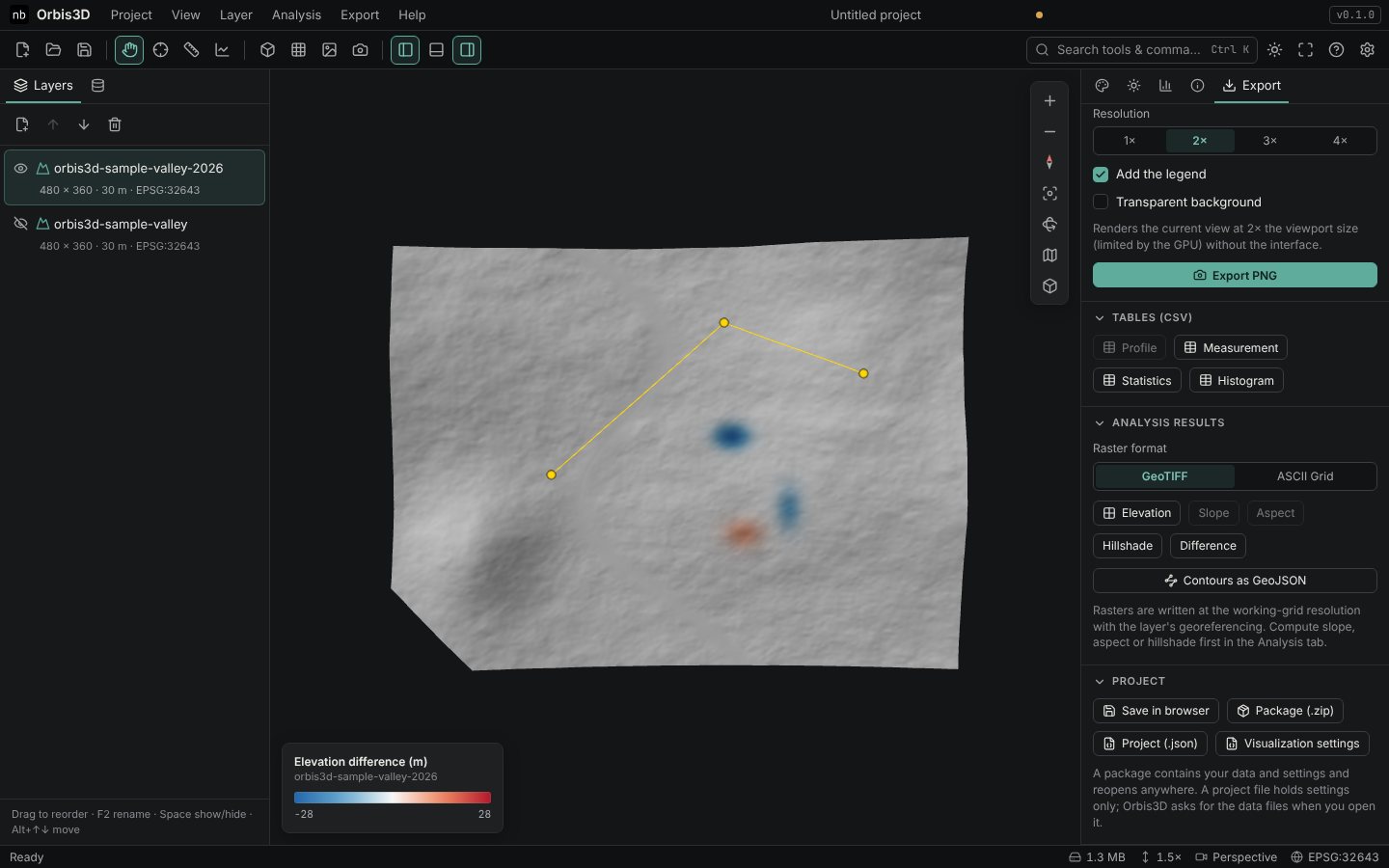
- With Include the surface colours as a texture ticked, click OBJ (ZIP). You get a ZIP file.
- Without it, click OBJ. You get a single
.objfile with geometry only.
- Unpack the ZIP and import the
.objfile. Keep the.mtland.pngfiles in the same folder so that the software finds the material and texture.
What the ZIP contains
| File | Content |
|---|---|
<name>.obj |
Vertices, texture coordinates, normals and triangles; one object per layer and one for the sides |
<name>.mtl |
Materials, with map_Kd pointing to the texture |
<layer>_texture.png |
The colour texture of each layer |
README.txt |
Units, axes and exaggeration of the export |
Only vertices that belong to triangles are written, so NoData areas leave no stray points. Contour lines are not included in OBJ (the format has no practical line support in most programs); use GLB for them.
Expected result
An OBJ model with the same shape and colours as the GLB export, ready for software that reads Wavefront OBJ.
Common mistakes
- Texture missing after import. The
.mtland.pngwere not kept next to the.obj. - Model lies on its side. The OBJ is Y-up. Some CAD programs expect Z-up; rotate by 90° about the X axis when importing.
- Model too large or too small. Choose Kilometres or Fit to 1 under Units.