
Performance troubleshooting
What to do when loading is slow, navigation stutters, memory runs out or exports take long, and which settings help most.
You will learn
- Find what makes Orbis3D slow on your device.
- Change the settings that help most.
- Recognise memory limits and recover from them.
Prerequisites
The task
The 3D view is sluggish, or a large DEM takes long to load or fails. You want to find the cause and fix it.
Quick checks
| Symptom | Likely cause | What to do |
|---|---|---|
| Rotating the view stutters | Too many triangles or shadows | Lower Settings ▸ Mesh detail; turn off Cast shadows and the wireframe |
| Loading takes long | Large non-COG GeoTIFF read at full resolution | Wait for the preview; convert to a COG; lower Processing resolution |
| "The browser ran out of memory" | Working grid too large | Lower Processing resolution to 1 or 4 million cells and reload |
| Contours take long or are refused | Interval too small for the terrain | Use a larger interval or limit the elevation range |
| Graphics context lost | GPU memory exhausted | Lower mesh detail, close other GPU-heavy tabs, reload |
| Export takes long | Large mesh or 4× image | Export the active layer only; lower mesh detail or image resolution |
The settings that help most
- Mesh detail (Settings). Halving it roughly halves the drawing work. Colours keep their detail.
- Cast shadows (Scene ▸ Lighting). Shadows draw the scene twice.
- Render mode (Scene ▸ Rendering). Wireframes of millions of triangles are slow.
- Processing resolution (Settings). Smaller working grids load, colour and analyse faster.
- Levels of detail (Settings). Keep it on with several layers.
Click Reload layers with these settings after changing the budgets.
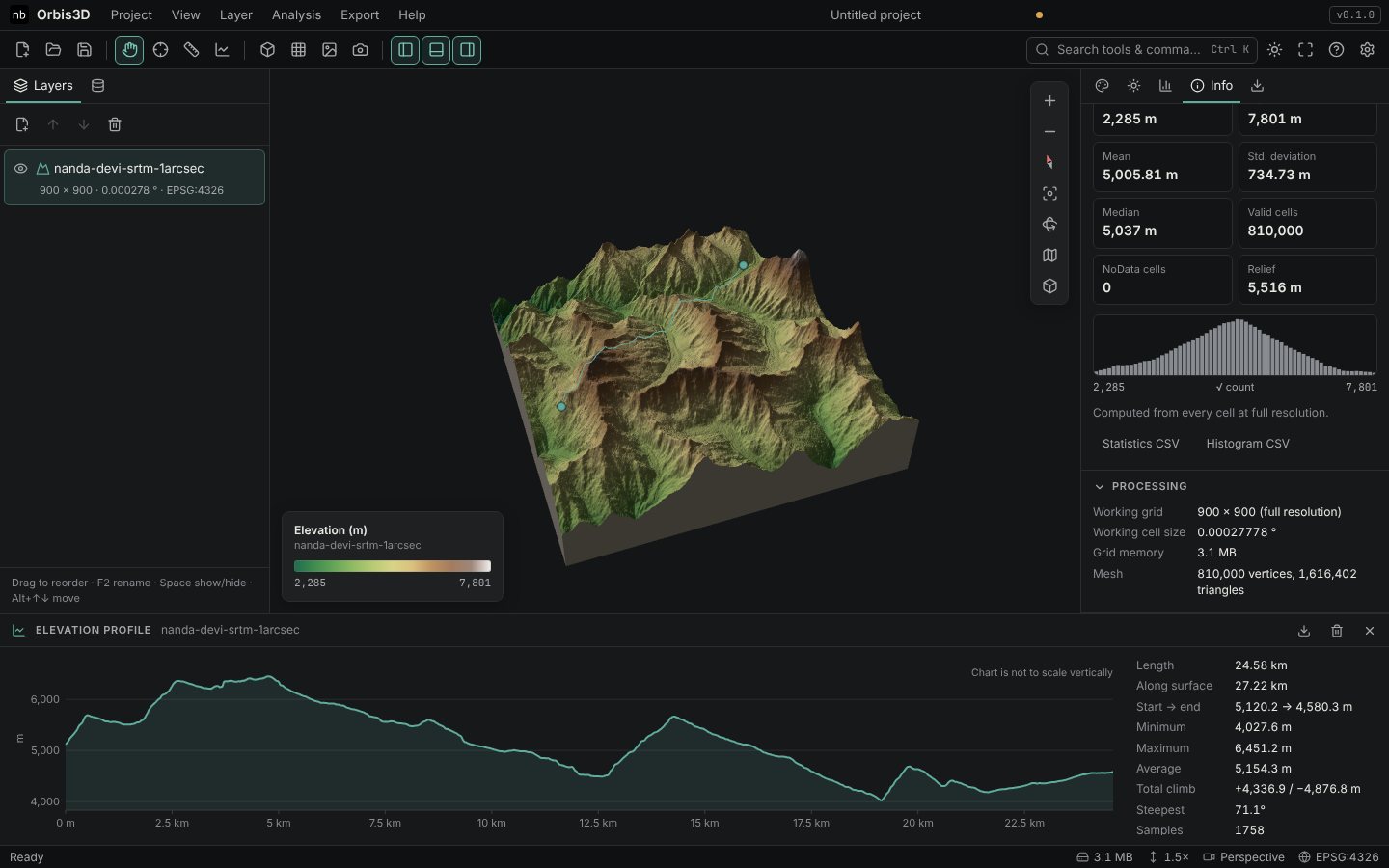
Where to see the numbers
- Info ▸ Processing: working grid size, cell size, grid memory and mesh size of the active layer.
- Status bar: the memory used by all working grids.
- Settings: the device's reported memory, processor threads, maximum texture size and the number of GPU geometries and textures.
Good habits
- Keep only the layers you need; remove the others (they release their memory and worker).
- Prefer Cloud Optimized GeoTIFFs for large data.
- Save the project before experimenting with high budgets.