
Installing nothing: using Orbis3D in your browser
Orbis3D needs no installation, account or plug-in. Learn what your browser needs, how offline use works and how to keep the app at hand.
You will learn
- What you need to run Orbis3D.
- How Orbis3D works offline after a first visit.
- How to add Orbis3D to your device like an app.
Prerequisites
The task
You want to start working with elevation data without installing desktop GIS software. Orbis3D is a website: everything it needs is downloaded the first time you open it, and the processing happens in your browser.
What you need
- A current desktop browser with WebGL 2: Chrome, Edge, Firefox or Safari. WebGL 2 is how browsers draw 3D graphics with the graphics processor.
- JavaScript enabled.
- Enough memory for your data. A 4 million cell DEM needs about 16 MB for its working grid, plus the 3D mesh and colours. See Working with large DEM datasets.
There is no sign-in, no licence key and no plug-in.
Steps
- Go to the Orbis3D home page and click Open Orbis3D, or open the workspace directly.
- The workspace opens with an empty viewport. If your browser cannot draw 3D graphics, the viewport says so instead and explains what to do.
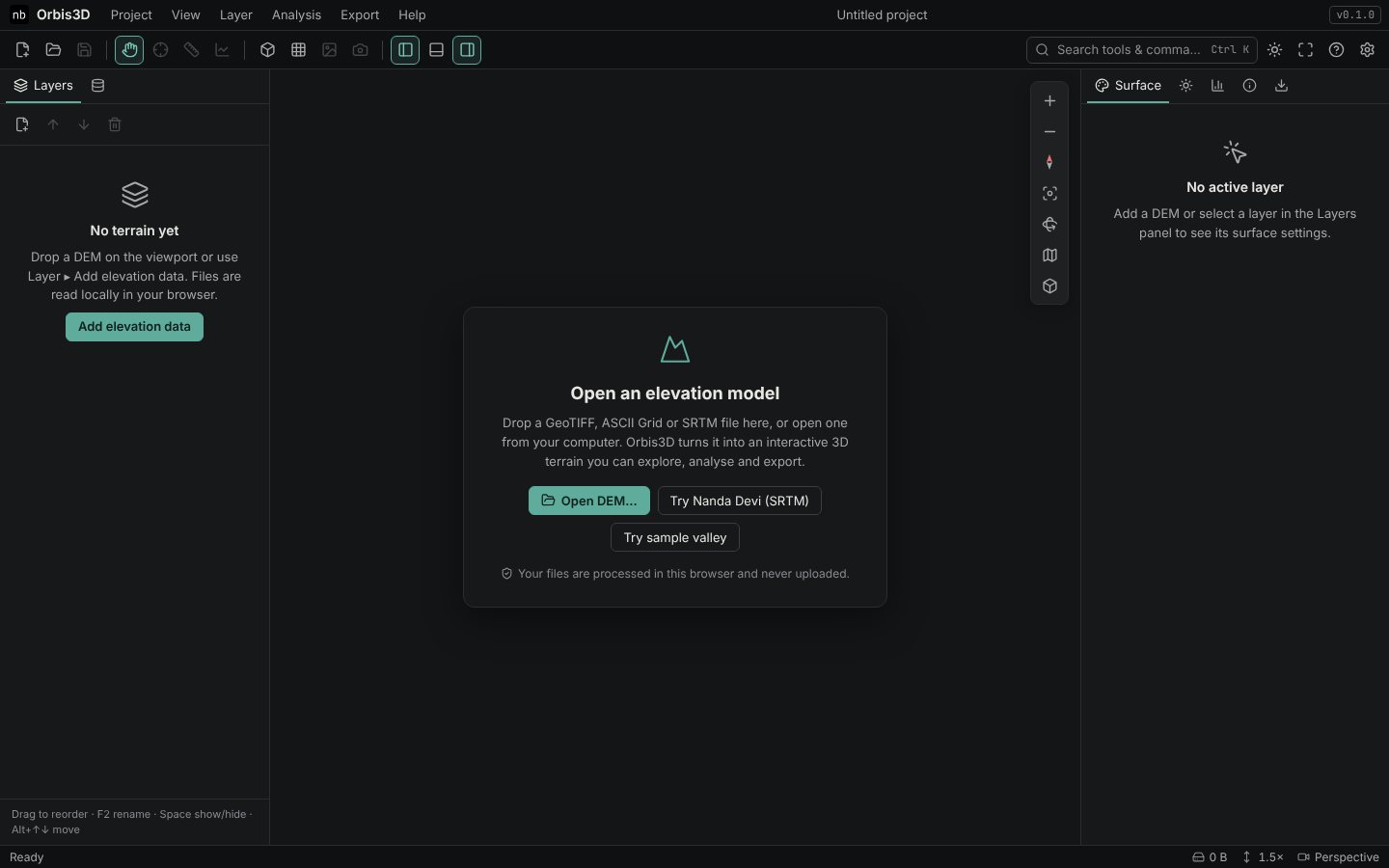
- Use the workspace as you would use a desktop program. Your projects can be saved inside the browser (Project ▸ Save in this browser) or exported as files.
Working offline
After your first visit, the browser keeps a copy of the Orbis3D application. If you lose your connection you can still reload the workspace, open DEMs from your computer and do all analyses and exports. Tutorial pages and sample files that you have opened before are also available offline. Pages and samples you have never opened need a connection.
## Phones and tabletsOrbis3D also works on tablets and phones with WebGL 2. On small screens the side panels become drawers that you open with the panel buttons in the toolbar, and the menus are gathered under Menu. Small screens also start with lower processing settings so that large rasters fit in memory.
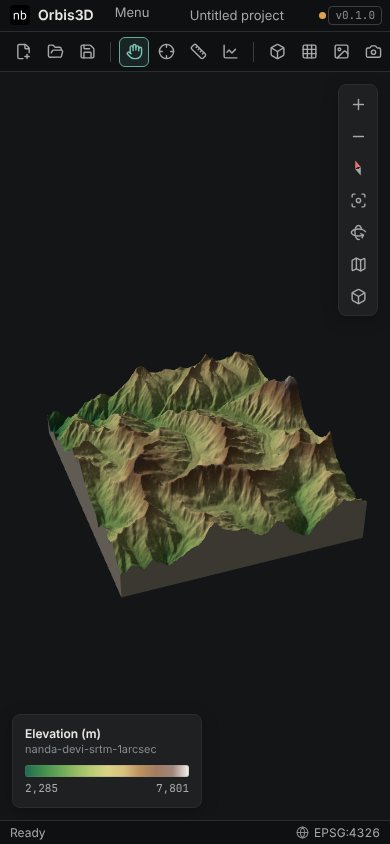
Add Orbis3D to your device
Browsers that support installable web apps (for example Chrome and Edge) may offer Install in the address bar or the browser menu. Installing only adds a window and an icon; Orbis3D still runs from your browser's copy, and your files are still processed locally.
Common mistakes
- Hardware acceleration turned off. Without it, WebGL 2 may be missing. See Browser and WebGL compatibility.
- Private browsing. Some browsers limit storage in private windows, so projects saved in the browser may disappear when the window closes. Export a project package instead.